





iPhone 5c Charging Port Replacement | Lightning Dock Flex with Headphone Jack | A1529
iPhone 5c Charging Port Replacement | Lightning Dock Flex with Headphone Jack | A1529
 In Stock
Regular price
NZ$10.99
Regular price
Sale price
NZ$10.99
Unit price
per
inc GST


iPhone 5c Charging Port Replacement | Lightning Dock Flex with Headphone Jack | A1529
iPhone 5c Charging Port Replacement | Lightning Dock Flex with Headphone Jack | A1529
In Stock
Regular price
NZ$10.99
Regular price
Sale price
NZ$10.99
Unit price
per
inc GST
DIY DIFFICULTY
ModerateAbout 45 minutes to 2 hours
Screen unclips from the front and comes off. The battery on pull strips and the loudspeaker come out before the port.
- iPhone 5c charging port replacement, the complete Lightning dock flex cable assembly with headphone jack
- Fixes a charging port that's not working, loose, charges on and off, only charges at an angle or won't connect to a computer
- Compatible with iPhone 5c models; A1456, A1507, A1516, A1526, A1529 & A1532
Frequently Bought Together


Frequently Bought Together


Product Details
Is your iPhone 5c charging port not working? If it feels loose, only charges at an angle, charges on and off, won't connect to a computer or isn't charging at all, a new charging port (also called the charger port or Lightning dock connector) is usually the repair you need.
This Lightning dock flex cable is the complete charging port assembly for the iPhone 5c (A1456, A1507, A1516, A1526, A1529 and A1532). It also carries the headphone jack, the bottom microphone and the cellular antenna, so it can fix audio problems too, such as no sound through wired headphones or callers not hearing you.
100% guaranteed to never show "This accessory may not be supported by iPhone" on official Apple products with our charger ports.
Part Includes:
- Lightning connector
- Headphone jack
- Microphone
- Cellular antenna
- Flex cable with logic board connector
- 12 Month Warranty
Please Note
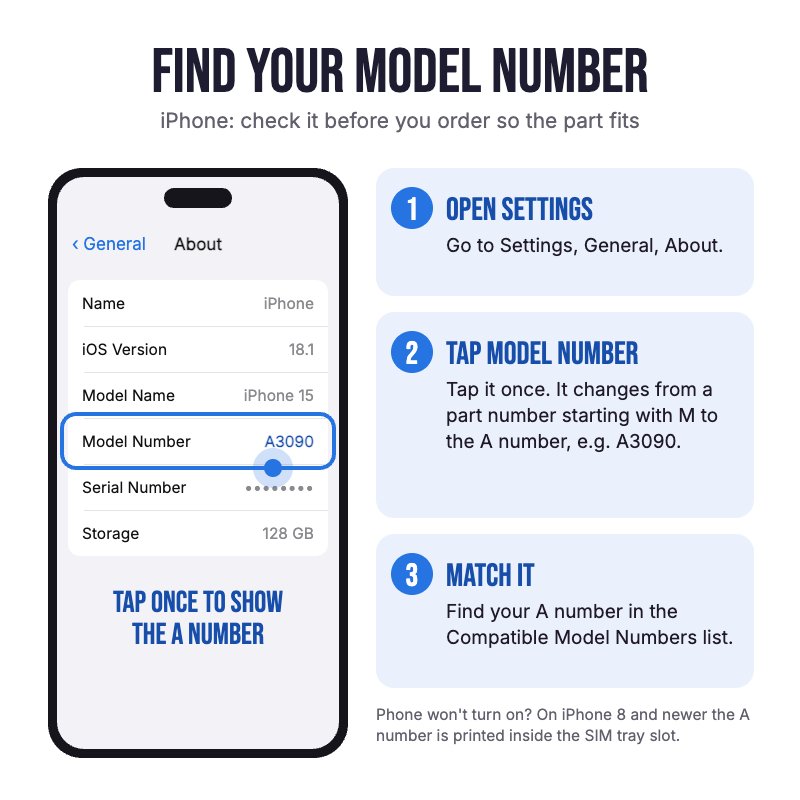
Does NOT fit iPhone 5 or iPhone 5s. They look alike but use different ports. Check in Settings, General, About for your model.
Please Note
The port colour only shows inside the port and can't be seen from the outside, so this one suits any colour iPhone.
Please Note
This repair requires the removal of the screen and battery to reach the port. Watch the video in Installation Help before you start.
Specifications
- Part Number: 821-1705, 821-1833
- Type: Charging Port Dock Flex Cable
- Connector: Lightning
- Headphone Jack: 3.5mm
- Microphone: Yes, 1 bottom microphone
- Antenna: Cellular antenna
- Colours: Black
- Compatible Models: iPhone 5c (A1456, A1507, A1516, A1526, A1529, A1532)
- Pairing: Not needed. The charging port isn't a paired part, so no Unknown Part message.
- Warranty: 12 Months
How do I find my Model number?
 iPhone 5c
Compatible Model Numbers
iPhone 5cModel Number (A Number)
- A1456
- A1507
- A1516
- A1526
- A1529
- A1532
 iPhone 5c Model NumbersHow do I find my Model number?
Model Identifier
- iPhone5,3
- iPhone5,4
EMC Number
- EMC 2644
- EMC 2694
Device Number (M Number)
- ME565
- MF159
- ME569
- MF163
- ME566
- MF160
- ME567
- MF161
- ME568
- MF162
- MGFM2
- MGFR2
- MGFN2
- MGFP2
- MGFQ2
- ME499
- MF092
- ME503
- MF096
- ME500
- MF093
- ME501
- MF094
- ME502
- MF095
- MG8X2
- MG922
- MG8Y2
- MG902
- MG912
- MF321
- MF326
- MF325
- MF330
- MF322
- MF327
- MF323
- MF328
- MF324
- MF329
- MG132
- MG172
- MG142
- MG152
- MG162
- ME505
- MF134
- ME509
- MF138
- ME506
- MF135
- ME507
- MF136
- ME508
- MF137
- ME529
- MF144
- ME533
- MF148
- ME530
- MF145
- ME531
- MF146
- ME532
- MF147
- ME493
- MF129
- ME497
- MF133
- ME494
- MF130
- ME495
- MF131
- ME496
- MF132
- MGF02
- MGF42
- MGF12
- MGF22
- MGF32
- MGF52
- MGF92
- MGF62
- MGF72
- MGF82
- MG2E2
- MG2J2
- MG2F2
- MG2G2
- MG2H2
- ME553
- MF154
- ME557
- MF158
- ME554
- MF155
- ME555
- MF156
- ME556
- MF157
- MGFG2
- MGFL2
- MGFH2
- MGFJ2
- MGFK2
- MF364
- MF369
- MF368
- MF373
- MF365
- MF307
- MF366
- MF371
- MF367
- MF372
- MG0Q2
- MG0V2
- MG0R2
- MG0T2
- MG0U2
- ME679
- MF104
- ME683
- MF108
- ME680
- MF105
- ME681
- MF106
- ME682
- MF107
- MG1Q2
- MG1W2
- MG1R2
- MG1U2
- MG1V2
More info Less info
Installation Help

Check out the video above or the step by step guide below for assistance with this repair
iFixit iPhone 5c Lightning Connector Replacement Guide

Here are some tools you may need to help you complete the repair.
- P2 Metal Pentalobe 0.8mm Screwdriver Tool
- #000 1.5mm Metal Phillips Screwdriver Tool (PH000)
- Large Blue Suction Cup Opening Tool
- Mechanic AK-15 King ESD Anti-Static Stainless Steel Red Curved Tweezers
- iGadget Plastic Triangle Opening Picks (set of 5)
- 5x iGadget Plastic Flexible Opening Cards
- Nylon Antistatic Spudger Pry Tool
- Or get the P2 and #000 screwdrivers, suction cup, tweezers, opening pick and spudger together in our 6 Piece iPhone Repair Toolkit
- iSclack Evo (Gen 3) Suction Cup Opening Tool for phones and tablets by Dottorpod
- iHold Screen Holding Opening Tool for iPhone 5/5s/5c/SE by Dottorpod
- uFix iOpener Microwaveable Heated Bag Opening Tool
- iPhone 5/5s/5c/SE Battery Adhesive

Here are some helpful tips to assist you in completing a safe repair on your device. If you are unsure of something or have any questions, please feel free to contact us either by phone (0508 IGADGET) or by email
- Drain the battery below 25% before you start on this repair
- Always power down your device prior to working on it
- Always track your screws to avoid putting back in the wrong place and damaging your device. There are two 3.8mm P2 pentalobe screws beside the Lightning port, then #000 Phillips screws of different lengths inside. Never put the 3.25mm or 1.7mm front panel bracket screw in the bottom right hole, as it can damage the logic board. You can draw a picture of your phone and tape the screws to the right places or use a screw mat
- Place a suction cup just above the home button and lift the front panel while you pry the clips free with a plastic opening tool. Open the screen to about 90 degrees from the home button end and keep it supported, so the display cables at the top aren't strained
- Make sure you always unplug the battery before attempting any component removal. Remove the two screws and the metal bracket over the battery connector, then lift the connector off the logic board with the flat end of a spudger
- Remove the front panel bracket, unplug the front camera and sensor cable and the LCD cable, then lift the screen off. Pry only the connectors, never the sockets on the logic board
- The battery has to come out to reach the port. Pull its two adhesive strips out slowly, keeping them flat. If a strip breaks, warm the battery area and ease it up with a plastic card, never prying against the logic board. Fit new battery adhesive when you put it back
- Peel the home button cable off the speaker enclosure, remove its three screws and lift it out without snagging the antenna cable. Note how the small contact bracket at the far right screw hole sits, as it can fall off
- Unplug the Lightning flex from the logic board, peel the cable off the board shield and unplug the cellular antenna at the base of the logic board. The port is held by four Phillips screws. Move the small rubber microphone gasket from the old port across to the new one
- The connector to the logic board can be tricky to align correctly so it fits into place. We recommend taking a pencil and tracing the original charging port so you know exactly where it gets positioned and lining the new charger port within the pencil lines
- Before closing the phone, test that it charges, connects to a computer, has mobile signal, and that the microphone and headphone jack work (record a voice memo, play audio through headphones)
- The iPhone 5c has no water-resistance seal and its screen clips in without adhesive. Press the screen down evenly until the clips snap in. If the screen is blank or shows white lines, reseat the LCD cable and reconnect the battery
What’s In The Box
- 1x iPhone 5c Replacement Charging Port Flex Cable


