Frequently Bought Together
Product Details
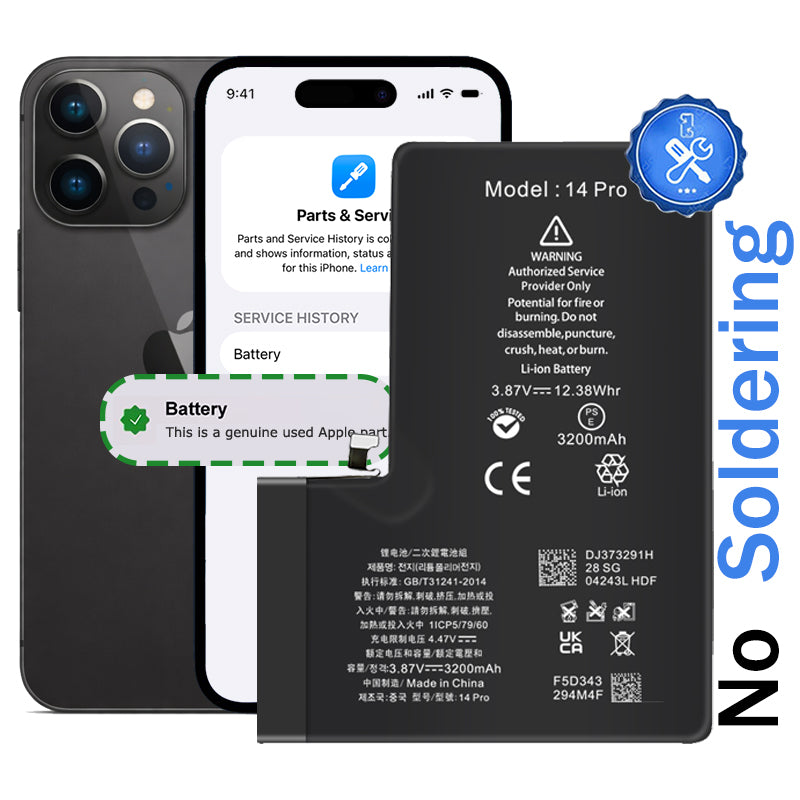
Struggling with iOS battery warnings after third-party replacements? This iPhone 14 Pro diagnostic battery features a pulled OEM chip that solves Apple's serialization restrictions introduced in recent iOS versions.
- Accurate health reporting: Displays genuine battery metrics in Settings without pop-up messages
- Eliminates iOS warnings: No 'Unknown Part' notifications or battery health verification errors
- Premium components: Texas Instruments chipset with zero cycle count
- OEM Quality: 3200 mAh capacity, 3.87V
- Complete safety protection: Overcharge, overcurrent, and short circuit safeguards built-in
- Professional-grade quality: Simplifies repair workflow and eliminates risky soldering steps
Restore your iPhone 14 Pro to full factory functionality with authentic battery authentication that keeps iOS happy.
Please Note
This is not a genuine Apple battery replacement
Specifications
- Voltage: 3.87V
- Watt Hours: 12.38Whr
- Capacity: 3200mAh
- Authentication: Pulled authentication chip
- Chipset: Texas Instruments
- Battery Type: Li-Polymer
- Warranty: 12 Months
Compatible Model Numbers
Model Number (A Number)
- A2650
- A2889
- A2890
- A2891
- A2892
iPhone 14 Pro Model Numbers
Model Identifier
- iPhone15,2
EMC Number
- EMC 8140
- EMC 8150
- EMC 8151
- EMC 8152
Device Number (M Number)
- MQ0E3
- MQ1D3
- MQ273
- MQ303
- MQ003
- MQ0X3
- MQ0F3
- MQ1E3
- MQ283
- MQ313
- MQ013
- MQ173
- MPXU3
- MQ0Q3
- MQ0G3
- MQ293
- MQ323
- MQ1W3
- MQ233
- MQ2V3
- MPXV3
- MQ1M3
- MQ2G3
- MQ0D3
- MQ0D3
- MQ1C3
- MQ263
- MQ2Y3
- MPXY3
- MQ053
- MQ143
- MQ0H3
- MQ1G3
- MQ2A3
- MQ333
Installation Help
Watch the video above or checkout the step-by-step guide below for assistance in completing this repair
iFixit iPhone 14 Pro Battery Replacement Guide
Remember
After completing your repair, calibrate your newly installed battery by charging it to 100% and then charging for a further two hours. Use your iPhone until it shuts off due to low battery, and finally, charge it uninterrupted to 100% again
Here is some tools you may need to help you complete the repair.
Please note: A discounted simple toolset with the tools you need is available in a pop-up when you add this product to cart
- Phillips #000 Screwdriver
- P2 Pentalobe Screwdriver
- Y000 Triwing tri-point Screwdriver
- Standoff Screwdriver for iPhone
- iSclack opening tool
- Suction Cup
- Fine Tipped Curved Tweezers
- iGadget 5 piece opening picks
- Black Spudger
- uFix iOpener Heat bag
- iHold Evo Screen Holder
Here are some helpful tips to assist you in completing a safe repair on your device. If you are unsure of something or have any quesions, please feel free to contact us either by phone (0508 IGADGET) or by email
- Always track your screws to avoid putting back in the wrong place and damaging your device. You can draw a picture of your phone and tape the screws to the right places or use a screw mat
- Always power down your device prior to working on it
- Make sure you always unplug the battery before attemping any component removal
- Before removing your battery, discharge the battery to below 25%. A charged lithium-ion battery can catch fire or explode if punctured or damaged
- Removing the old battery adhesive can be frustrating, we recommend grabbing the tabs with tweezers and rolling the adhesive up the tweezers until it is gone. It may also be helpful to remove modular components that might be in the way at the bottom for better access. Also check out this video for more adhesive removal tips.
- After replacing your battery, the Battery Health feature on your phone will display "Service" and a message about needing to have your phone checked by an authorized service provider. Rest assured that the battery and your phone are fine. iOS shows this message anytime a battery is replaced by anyone other than an authorized service provider. Your phone will function 100% normally other than the Battery Health not reporting the health status of the battery
- If your newly installed battery is draining fast or shutting off randomly, try the following steps to resolve it
- Open up the device and unplug the battery
- Check the phone and battery connector for rogue bits of foam or debris and remove
- Plug the battery connector back into the phone making sure it is seated correctly (should hear an audible click)
- Inspect the flex cable to make sure there is no strain on it when the battery is plugged in. If there is any strain you may need to remove the battery and reposition (higher, lower, closer, further away from connector) so that the cable sits without stretch. If the cable is pushing against the bottom of the phone chassis, the cable may need to be reshaped to sit comfortably.
- Put phone back together and turn on
- Once you reach the home screen, perform a force restart by pressing and releasing the volume up button, then pressing and releasing the volume down button and then pressing and holding the side/power button until the apple logo appears.
Caution
If the new battery or the battery in your device is swollen or damaged during repair, take the proper precautions
Note
You cannot dispose of old batteries in your general waste. Find recycling e-waste centres online or take to your local refuse station.
What’s In The Box
- 1x iPhone 14 Pro Diagnostic Replacement Battery
- 1x Replacement Battery Adhesive