





MacBook Pro 13" A1989 / A2251 Battery Replacement (A1964) 2018-2020
MacBook Pro 13" A1989 / A2251 Battery Replacement (A1964) 2018-2020
1
MBPRO-A1989-15-A1964
 In Stock
Regular price
NZ$98.99
Regular price
Sale price
NZ$98.99
Unit price
per
inc GST
MacBook Pro 13" A1989 / A2251 Battery Replacement (A1964) 2018-2020
MacBook Pro 13" A1989 / A2251 Battery Replacement (A1964) 2018-2020
1
MBPRO-A1989-15-A1964
In Stock
Regular price
NZ$98.99
Regular price
Sale price
NZ$98.99
Unit price
per
inc GST
DIY DIFFICULTY
ModerateAbout 1 to 3 hours
Bottom case comes off first. The trackpad comes out, then the glued cells are freed with adhesive remover.
- Replacement Lithium Ion (Li-Polymer) Battery for MacBook Pro 13" Four Thunderbolt 3 ports with ternary (nickel cobalt manganese) battery cell and safety chipset
- Fixes a MacBook Pro that won't turn on, turns off suddenly, won't hold a charge or shows a "Service Battery" warning
- Suits MacBook Pro 13" A2251 (2020) and A1989 (2018 & 2019); battery model A1964
Frequently Bought Together


Frequently Bought Together
Product Details
This MacBook Pro 13" (2018-2020) replacement battery is what you need to bring your dead laptop back to life!
Battery degradation is an inevitable part of your MacBook Pro's lifespan. If your laptop won't turn on, turns off suddenly, has a "service battery" warning, has had water damage or simply won't hold a charge, this replacement battery may be what you need to fix it.
It suits the 13-inch MacBook Pro with Touch Bar and four Thunderbolt 3 ports (two on each side): the A1989 from 2018 and 2019, and the Intel A2251 from 2020. It replaces battery model A1964.
Don't be let down by poor quality cheap batteries. Our high quality aftermarket battery is built with a ternary battery cell, safety chipsets and high grade cabling to give you years of trouble free charging.
The battery comes as one pack of cells with its control board attached. The cells are glued to the top case and the trackpad has to come out first, so this is a difficult job that needs adhesive remover or isopropyl alcohol and plastic cards. Watch the video and follow the step by step guides in Installation Help before you start.
Part Includes:
- Ternary Battery Cell
- Safety chipsets and PCB board
- High Grade cabling and connectors
- 12 Month Warranty
Please Note
Does NOT fit the two-port 13" models (A2159, A2289, A2338 M1/M2) or the 2016-2017 A1706. Check the A-number on the bottom case for your model.
Please Note
Fits the four-port 13" MacBook Pro: A2251 (2020) and A1989 (2018 and 2019). Count the Thunderbolt ports, two on each side.
Please Note
High quality aftermarket battery, not an official Apple part.
Please Note
Isopropyl alcohol is not included in the box. You'll need some to loosen the old battery adhesive.
Specifications
- Compatible Part Numbers: A1964
- Compatible MacBook Models: A1989, A2251
- Voltage: 11.41V
- Watt Hours: 58.19Whr
- Capacity: 5100mAh
- Battery Type: Li-Polymer
- Cell Type: Ternary (nickel cobalt manganese)
- Fixing: Glued to the top case, control board held by 2x T5 Torx screws
- Pairing: Not needed. Battery Health should read Normal after fitting.
- Warranty: 12 Months
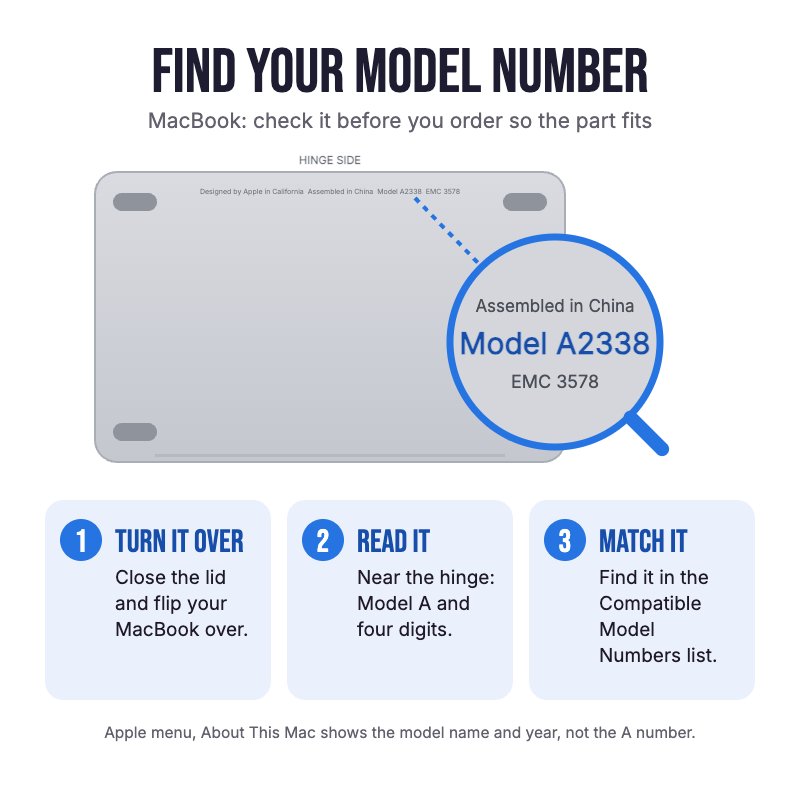
How do I find my Model number?
 MacBook Pro 13" 2020 Four Thunderbolt 3 ports
 MacBook Pro 13" 2019 Four Thunderbolt 3 ports
MacBook Pro 13" 2018 Four Thunderbolt 3 ports
Compatible Model Numbers
MacBook Pro 13" 2020 Four Thunderbolt 3 portsModel Number (A Number)
- A2251
EMC Number
- EMC 3348
 MacBook Pro 13" 2020 Four Thunderbolt 3 ports How do I find my Model number?
Model Identifier
- MacBookPro16,2
Device Number (M Number)
- MWP42
- MWP52
- MWP62
- MWP72
- MWP82
More info Less info
MacBook Pro 13" 2019 Four Thunderbolt 3 portsModel Number (A Number)
- A1989
EMC Number
- EMC 3358
MacBook Pro 13" 2019 Four Thunderbolt 3 ports How do I find my Model number?
Model Identifier
- MacBookPro15,2
Device Number (M Number)
- MV962
- MV972
- MV982
- MV992
- MV9A2
More info Less info
MacBook Pro 13" 2018 Four Thunderbolt 3 portsModel Number (A Number)
- A1989
EMC Number
- EMC 3214
MacBook Pro 13" 2018 Four Thunderbolt 3 ports How do I find my Model number?
Model Identifier
- MacBookPro15,2
Device Number (M Number)
- MR9Q2
- MR9R2
- MR9T2
- MR9U2
- MR9V2
More info Less info
Installation Help

Check out the video above or the step by step guides below for assistance with this repair
iFixit MacBook Pro 13" Four Thunderbolt Ports 2020 Battery Replacement Guide
iFixit MacBook Pro 13" Touch Bar 2019 Battery Replacement Guide
iFixit MacBook Pro 13" Touch Bar 2018 Battery Replacement Guide
Remember
After completing your repair, calibrate your newly installed battery by charging it to 100% and then charging for a further two hours. Use your MacBook until it shuts off due to low battery, and finally, charge it uninterrupted to 100% again

Here are some tools you may need to help you complete the repair.
- Mechanic AK-15 King ESD Anti-Static Stainless Steel Red Curved Tweezers
- iGadget Plastic Triangle Opening Picks (set of 5)
- uFix iOpener Microwaveable Heated Bag Opening Tool
- iGadget Plastic Alcohol 200mL Bottle with Pump Top
- iGadget Universal Magnetic Work Project Mat with Marker (30cm x 25cm)

Here are some helpful tips to assist you in completing a safe repair on your device. If you are unsure of something or have any questions, please feel free to contact us either by phone (0508 IGADGET) or by email
- Drain the battery below 25% before you start on this repair. A charged lithium-ion battery can catch fire or explode if punctured or damaged
- These MacBook Pros can power on by themselves when the bottom case comes off or a charger is connected. Before you start, turn off AutoBoot in Terminal with sudo nvram AutoBoot=%00, then power down. Turn it back on afterwards with sudo nvram AutoBoot=%03
- The P5 pentalobe, T3 and T5 Torx screwdrivers you need are included in the box with this battery.
- Always track your screws to avoid putting back in the wrong place and damaging your device. You can draw a picture of your laptop and tape the screws to the right places or use a screw mat
- The bottom case is held by six P5 pentalobe screws (two longer, four 3.4 mm) and four hidden clips. Lift the front edge with a suction cup, release the clips with a pick, then slide the case towards the front rather than lifting it up. On reassembly, hook the hinge-side clips first
- Disconnect the battery as soon as the bottom case is off, before any component removal: peel back the tape, flip up the black locking tab and slide the data cable out parallel to the board, then remove the T5 screw on the power connector and lift it clear
- The trackpad has to come out (two T3 bracket screws, then ten T5 screws). Its cable is glued to the top of the battery, so warm it gently and peel it off without folding it. Keep the six small washers from under the trackpad
- Remove the two T5 screws holding the battery control board
- The cells are glued to the top case. Cover the display with foil, tape over the trackpad opening and between the battery and each speaker, then tilt the MacBook so the adhesive remover or isopropyl alcohol runs away from the logic board. Wait about two minutes and lift each cell with a plastic card
- Never pry against a cell with metal tools, and never bend, squeeze or puncture the cells when removing the old battery or fitting the new one. Never pry against the logic board
- Clean off all the old adhesive. Test-fit the new battery, make sure the data cable is not pinched under the control board, then press each cell down for a few seconds
- If your newly installed battery is draining fast or shutting off randomly, first try the battery calibration steps found here. If that doesn't resolve it, try an SMC reset
Caution
If the new battery or the battery in your device is swollen or damaged during repair, take the proper precautions
Note
You cannot dispose of old batteries in your general waste. Find recycling e-waste centres online or take to your local refuse station.
What’s In The Box
- 1x MacBook Pro 13" A1989/A2251 Replacement Battery
- 1x Instruction guide
- 1x Replacement connector cover tape
- 1x Simple replacement toolkit
- 1x Small plastic handle P5 pentalobe screwdriver
- 1x Small plastic handle T3 torx screwdriver
- 1x Small plastic handle T5 torx screwdriver
- 1x Plastic spudger
- 1x Plastic suction cup
- 2x Plastic pry cards
- 1x Plastic wide head spudger
- 1x Pair of nitrile gloves
- 1x Dust protection cloth
Related Products


