


Sold Out

NZ$0.00
 Dispatches today

You have unsaved items in your cart.
If you wish to save them for a future transaction, please save your cart items by clicking here.
 In Stock
 Ships today


 In Stock
Bottom case off and battery unplugged. The cable bracket and stuck-down cable come off, then the trackpad unscrews.


Is the trackpad on your 13" MacBook Pro M1 not clicking, cracked or not responding to touch? A worn or damaged trackpad (also called the touchpad) makes your MacBook hard to use, and a replacement trackpad fixes it.
This Force Touch trackpad fits the 13-inch MacBook Pro M1 A2338 from Late 2020. Choose silver or space grey to match your MacBook. Is only the cable torn? Get the two port trackpad cable.
Part Includes:
Does NOT fit the 2022 M2 A2338 or the Intel 2020 A2289 and A2251. Check the chip in About This Mac.
The trackpad cable and screws are not included. Move them across from your old trackpad.
 MacBook Pro 13" M1 Late 2020
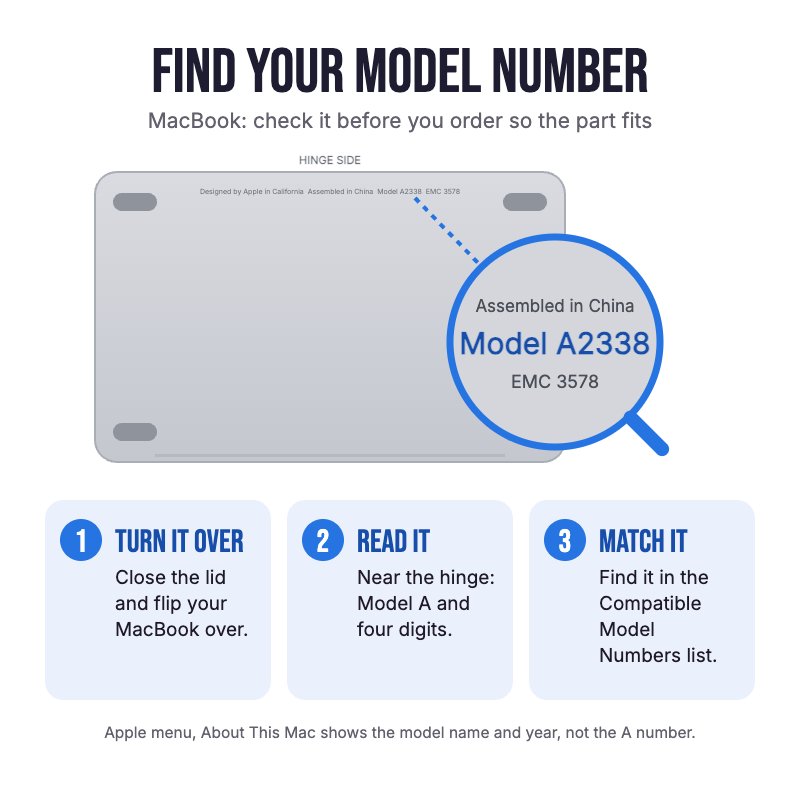
 MacBook Pro 13" M1 Late 2020 How do I find my Model number?

Check out the video above or the step by step guide below for assistance with this repair
iFixit MacBook Pro 13" M1 Late 2020 Trackpad Replacement Guide

Here are some tools you may need to help you complete the repair.

Here are some helpful tips to assist you in completing a safe repair on your device. If you are unsure of something or have any questions, please feel free to contact us either by phone (0508 IGADGET) or by email
sudo nvram BootPreference=%00 in Terminal, and sudo nvram -d BootPreference to undo it. On older macOS, keep the lid closed while it is plugged in

Go to Settings > General > About. To the right of "Model Number", you can see the Device Number (M number). To see the the Model Number (A number) tap on the device number.

Find the serial number, EMC number and model number printed on the underside of your Mac near the regulatory markings. It's also on the original packaging next to a barcode label. EMC is the most accurate number to compare with our list as it takes into account the year of your device.
The original packaging might also show an Apple part number such as MNYF2xx/A ("xx/A" is a variable that differs by country or region and is not included on our list so can be disregarded)."

Go to Apple icon > About this Mac > System Report. It will automatically be selected on the hardware tab (left side). To the right, the model name and model identifier will be written on the first two lines."


To find out what model watch you have, turn your watch on


