


Sold Out


You have unsaved items in your cart.
If you wish to save them for a future transaction, please save your cart items by clicking here.
 In Stock



 In Stock


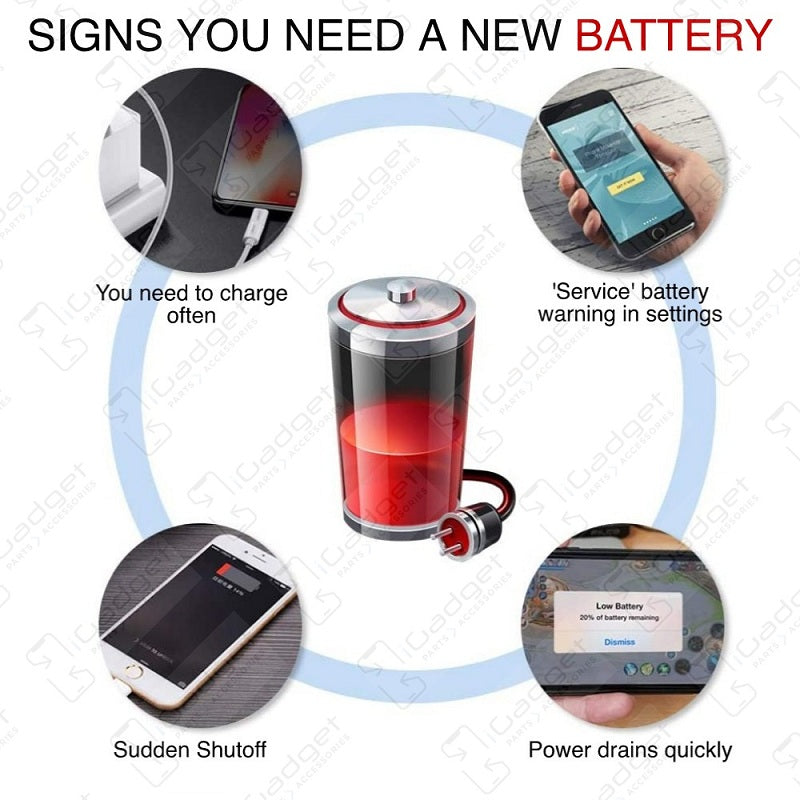
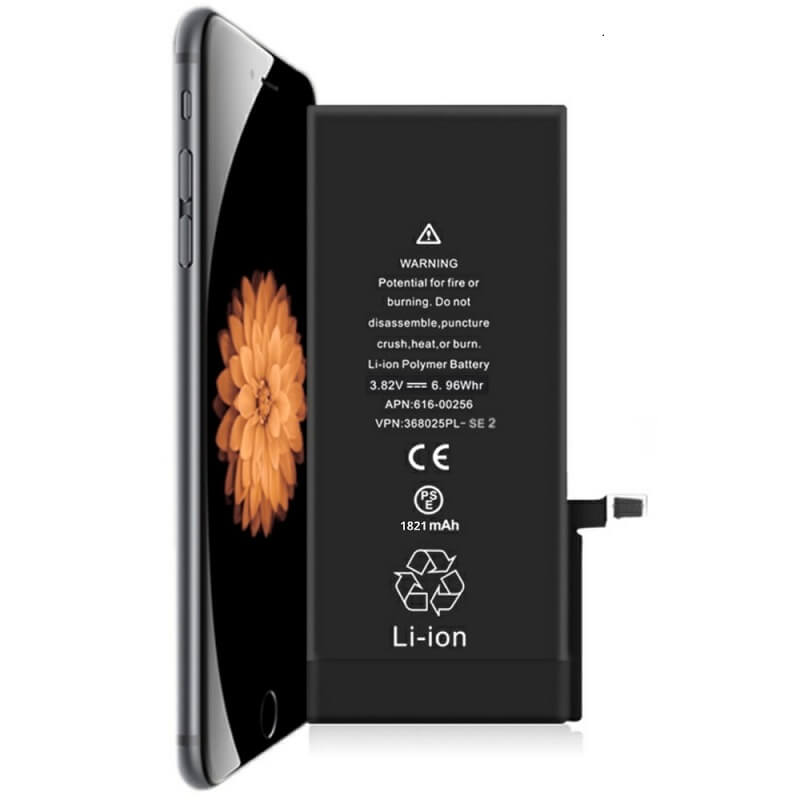
If your iPhone SE 2020 won't turn on, is stuck in a boot loop, has a "service battery" warning, or simply won't hold a charge, this replacement battery may be what you need to fix it.

A typical cellphone battery has about 500 cycles before it is unable to maintain a charge of at least 80% of its original capacity. Made from new materials, our batteries have zero cycles ensuring the maximum number of cycles available to you.

The OEM Texas Instruments chip (also known as the 'gas gauge') measures and accurately communicates available capacity, voltage, current, temperature and other critical parameters for lithium-ion batteries. An inadequate battery gas gauge will result in surprise shutdowns, overcharging, poor user experience and will ultimately lead to a quicker deterioration of your battery

iGadget's OEM battery adhesive allows you to glue down the battery into your chassis while leaving pull tabs for you to be able to remove the battery if you need to later on
After replacing your battery, a message about needing to have your phone checked by an authorized service provider will display. Rest assured that the battery and your phone are fine. This battery is not made by Apple and therefore the serial number of the battery is not recognised by Apple's software. Your phone will function 100% normally and the battery health will display if you have upgraded to iOS 18
 iPhone SE 2020
 iPhone SE 2020 Model Numbers
Watch the video above or checkout the step-by-step guide below for assistance in completing this repair
iFixit iPhone SE 2020 (Gen 2) Battery Replacement Guide
After completing your repair, calibrate your newly installed battery by charging it to 100% and then charging for a further two hours. Use your iPhone until it shuts off due to low battery, and finally, charge it uninterrupted to 100% again

Here are some tools you may need to help you complete the repair.
Please note: A discounted simple toolset with the tools you need is available in a pop-up when you add this product to cart

Here are some helpful tips to assist you in completing a safe repair on your device. If you are unsure of something or have any questions, please feel free to contact us either by phone (0508 IGADGET) or by email
If the new battery or the battery in your device is swollen or damaged during repair, take the proper precautions
You cannot dispose of old batteries in your general waste. Find recycling e-waste centres online or take to your local refuse station.
 New Zealand
Is as advertised, no surprises. Also had good fitting instructions.
New ZealandProduct and service was excellent. Battery is working great and saved me buying a new phone
New ZealandThe battery has a decent capacity

Go to Settings > General > About. To the right of "Model Number", you can see the Device Number (M number). To see the the Model Number (A number) tap on the device number.

Find the serial number, EMC number and model number printed on the underside of your Mac near the regulatory markings. It's also on the original packaging next to a barcode label. EMC is the most accurate number to compare with our list as it takes into account the year of your device.
The original packaging might also show an Apple part number such as MNYF2xx/A ("xx/A" is a variable that differs by country or region and is not included on our list so can be disregarded)."

Go to Apple icon > About this Mac > System Report. It will automatically be selected on the hardware tab (left side). To the right, the model name and model identifier will be written on the first two lines."


To find out what model watch you have, turn your watch on
