





Samsung Note 20 / Note 20 Ultra S Pen Replacement | OEM Stylus, Black (SM-N980/N986)
Samsung Note 20 / Note 20 Ultra S Pen Replacement | OEM Stylus, Black (SM-N980/N986)
 In Stock
Regular price
NZ$52.99
Regular price
Sale price
NZ$52.99
Unit price
per
inc GST


Samsung Note 20 / Note 20 Ultra S Pen Replacement | OEM Stylus, Black (SM-N980/N986)
Samsung Note 20 / Note 20 Ultra S Pen Replacement | OEM Stylus, Black (SM-N980/N986)
In Stock
Regular price
NZ$52.99
Regular price
Sale price
NZ$52.99
Unit price
per
inc GST
- Samsung Galaxy Note 20 and Note 20 Ultra S Pen replacement: OEM stylus pen in black that clicks into the phone's built-in S Pen slot
- Bluetooth S Pen with Air actions and remote camera shutter, charges in the slot
- Fine tip with pressure-sensitive writing
- Compatible with Samsung Galaxy Note 20 5G, Samsung Galaxy Note 20, Samsung Galaxy Note 20 Ultra 5G and Samsung Galaxy Note 20 Ultra 4G models; SM-N981B, SM-N981B/DS, SM-N981U, SM-N981U1, SM-N981W, SM-N981N, SM-N9810, SM-N980F, SM-N980F/DS, SM-N986B, SM-N986B/DS, SM-N986U, SM-N986U1, SM-N986W, SM-N986N, SM-N9860, SC-53A, SM-N985F, SM-N985F/DS
Frequently Bought Together


Frequently Bought Together


Product Details
Lost your Note 20 / Note 20 Ultra S Pen, or is your pen not working or not connecting? This OEM replacement S Pen is made for the Samsung Galaxy Note 20 and Note 20 Ultra (SM-N980/N986), clicks into the phone's built-in S Pen slot and works the same way as the pen that came with the phone.
Got a different model? We also stock the Note 10 / Note 10 Plus S Pen and S21 Ultra S Pen. Screen cracked too? The S Pen works with our Galaxy Note 20 OL3 screen replacement and Galaxy Note 20 Ultra OL3 screen replacement.
- REPLACES A LOST OR BROKEN PEN - Made to the shape of the Note 20 / Note 20 Ultra S Pen, so it slides into the built-in slot, clicks into place and goes wherever your phone goes.
- BLUETOOTH AIR ACTIONS - Connects to your phone over Bluetooth, so the side button and mid-air gestures work as a remote: take photos, play music and switch slides from across the room. Air actions support may vary by app.
- CHARGES IN THE SLOT - The pen's small battery only runs Air actions, and it charges by itself whenever the pen is in its slot.
- HOVER AND AIR COMMAND - Hold the pen just above the screen to see the pointer, use hover tools like Translate and Magnify, and press the side button to open Air command and your S Pen shortcuts.
- FINE TIP, PRESSURE SENSITIVE - Press lightly for thin lines or harder for thick strokes, with a fine tip for neat handwriting and detailed drawing. Slim and light to hold.
- REPLACEABLE NIB - The tip pulls out with tweezers and can be changed when it wears, so the pen keeps writing smoothly.
- SENT FROM NZ STOCK - Shipped from our New Zealand stock, so there's no waiting weeks for a part to arrive from overseas.
Part Includes:
- OEM replacement S Pen for the Galaxy Note 20 and Note 20 Ultra, black
- 12 Month Warranty
Please Note
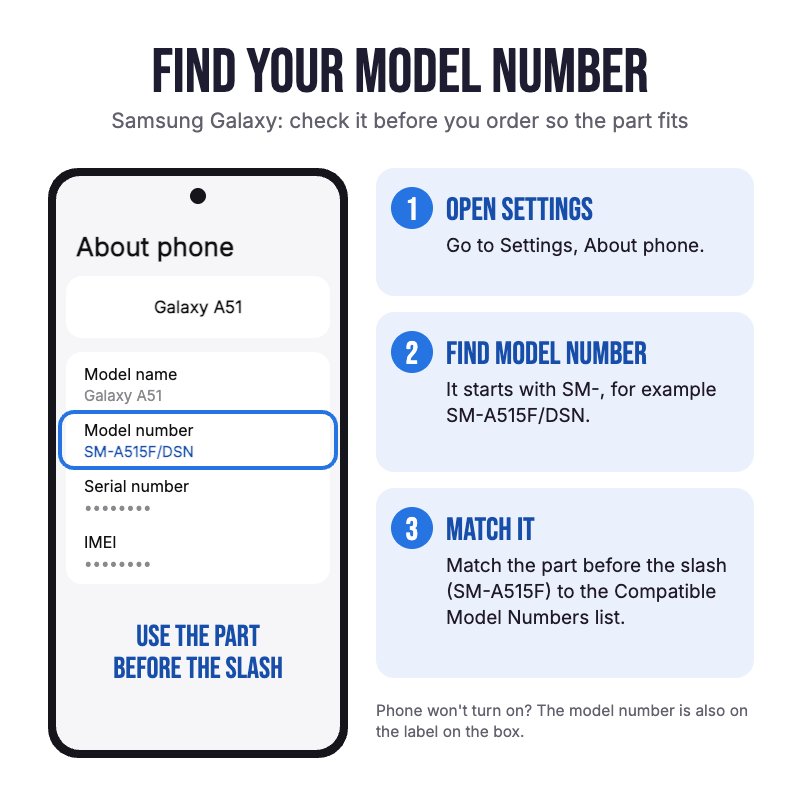
Not confirmed to fit the Note 9 or Note 10 Lite, which take different S Pens. Check in Settings, About phone for your model.
Please Note
Slot it in and the phone connects it by itself: wait for the S Pen connected message and it's ready for Air actions.
Please Note
Air actions only work while the pen is charged. If they stop, leave the pen in its slot for a few minutes. Writing and hover don't need a charge.
Specifications
- Type: OEM replacement S Pen
- Compatible Models: Galaxy Note 20 and Note 20 Ultra (SM-N980/N986)
- Colour: Black
- Pen Technology: EMR (Wacom) pen for the phone's built-in S Pen digitiser, with hover
- Tip: Replaceable
- Pressure Sensitive: Yes
- Air Command: Yes (hover and press the side button)
- Bluetooth and Air Actions: Yes, including remote camera shutter
- Charging: Charges in the phone's S Pen slot (for Air actions only)
- Finish: Anodised colour
- System: Android
- Spare Nibs: Not included
- Warranty: 12 months
Compatible Model Numbers
 Samsung Galaxy Note 20 5G
Model Number (SM Number)
- SM-N981B
- SM-N981B/DS
- SM-N981U
- SM-N981U1
- SM-N981W
- SM-N981N
- SM-N9810
Samsung Galaxy Note 20Model Number (SM Number)
- SM-N980F
- SM-N980F/DS
 Samsung Galaxy Note 20 Ultra 5G
Model Number (SM Number)
- SM-N986B
- SM-N986B/DS
- SM-N986U
- SM-N986U1
- SM-N986W
- SM-N986N
- SM-N9860
- SC-53A
Samsung Galaxy Note 20 Ultra 4GModel Number (SM Number)
- SM-N985F
- SM-N985F/DS
Installation Help

Using your new S Pen
Here are some helpful tips for getting started with your new S Pen. If you are unsure of something or have any questions, please feel free to contact us either by phone (0508 IGADGET) or by email
- Slide the S Pen into the slot nib first and push until it clicks in. To take it out, push the end in and it pops out.
- When you first slot the pen in, the phone connects it over Bluetooth and charges it. Wait for the S Pen connected message before you try Air actions.
- Hold the pen just above the screen and press the side button to open Air command. If the floating icon doesn't show, turn on Show floating icon in Settings, Advanced features, S Pen.
- S Pen not connecting? Put it back in the slot for a few minutes to charge, then open Settings, Advanced features, S Pen, Air actions, tap the three dots and choose Reset S Pen. Restart the phone if it still won't connect.
- S Pen not working at all? Take off any magnetic case or cover, check your screen protector, then restart the phone. Magnets, metal and some third-party screen protectors can stop an S Pen working.
- To change a worn nib, grip it with tweezers and pull it straight out, then push a new nib in with the pointed writing end facing out. Never reuse an old nib or force one in the wrong way round.
What’s In The Box
- 1x Samsung Galaxy Note 20 and Note 20 Ultra S Pen Replacement (Black)


