





MacBook Pro 17" A1297 Trackpad Replacement (2009-2011)
MacBook Pro 17" A1297 Trackpad Replacement (2009-2011)
 In Stock
Regular price
NZ$59.99
Regular price
Sale price
NZ$59.99
Unit price
per
inc GST


MacBook Pro 17" A1297 Trackpad Replacement (2009-2011)
MacBook Pro 17" A1297 Trackpad Replacement (2009-2011)
In Stock
Regular price
NZ$59.99
Regular price
Sale price
NZ$59.99
Unit price
per
inc GST
DIY DIFFICULTY
ModerateAbout 30 minutes to 1 hour
Lower case off and the screwed-in battery comes out. The trackpad unscrews from inside the case.
- Replacement trackpad for the 2009 to 2011 17" unibody MacBook Pro
- Fixes a trackpad that's not clicking, cracked or not responding to touch
- Compatible with MacBook Pro 17" A1297 (Early 2009 to Late 2011)
Frequently Bought Together


Frequently Bought Together


Product Details
Is the trackpad on your 17" MacBook Pro not clicking, cracked or not responding to touch? A worn or damaged trackpad (also called the touchpad) makes your MacBook hard to use, and a replacement trackpad fixes it.
This trackpad fits every 17-inch unibody MacBook Pro A1297, from Early 2009 to Late 2011. Is only the cable torn? Get the A1297 trackpad cable.
Part Includes:
- 1x Trackpad
- 12 Month Warranty
Please Note
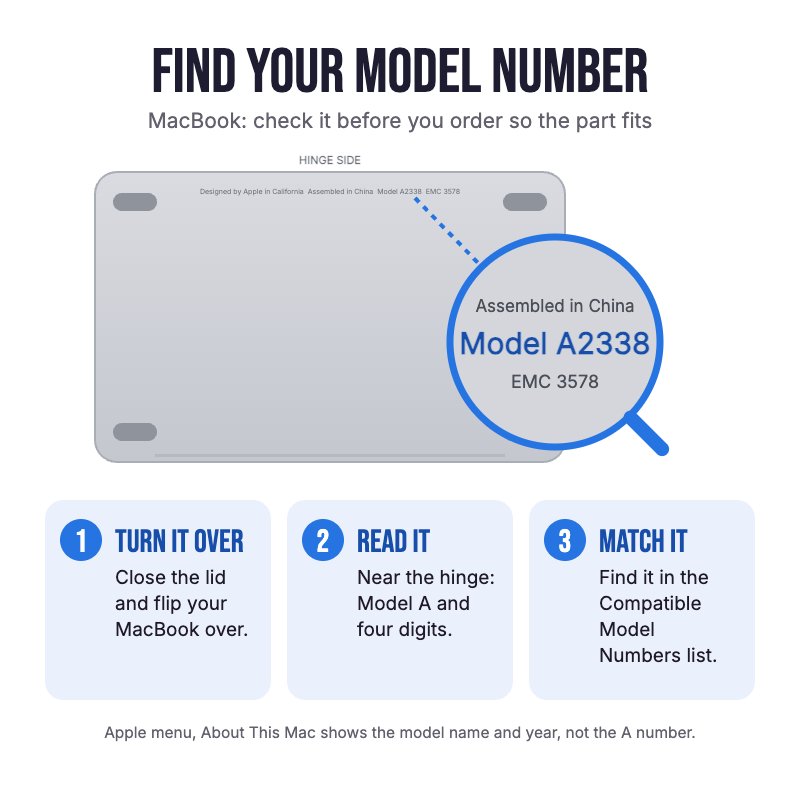
Does NOT fit the 13" A1278 or the 15" A1286, which use a smaller trackpad. Check the A-number on the bottom case.
Please Note
The trackpad cable is not included. Move it across from your old trackpad.
Specifications
- Part Type: Trackpad (mechanical click)
- Apple Part Number: 922-9009, 922-9826
- Cable: Not included
- Condition: Brand new or A-grade used genuine Apple part
- Warranty: 12 Months
How do I find my Model number?
 MacBook Pro 17" Late 2011
MacBook Pro 17" Early 2011
MacBook Pro 17" Mid 2010
MacBook Pro 17" Mid 2009
MacBook Pro 17" Early 2009
Compatible Model Numbers
MacBook Pro 17" Late 2011Model Number (A Number)
- A1297
EMC Number
- EMC 2564
 MacBook Pro 17" Late 2011 How do I find my Model number?
Model Identifier
- MacBookPro8,3
Device Number (M Number)
- MD311
More info Less info
MacBook Pro 17" Early 2011Model Number (A Number)
- A1297
EMC Number
- EMC 2352-1
MacBook Pro 17" Early 2011 How do I find my Model number?
Model Identifier
- MacBookPro8,3
Device Number (M Number)
- MC725
More info Less info
MacBook Pro 17" Mid 2010Model Number (A Number)
- A1297
EMC Number
- EMC 2352
MacBook Pro 17" Mid 2010 How do I find my Model number?
Model Identifier
- MacBookPro6,1
Device Number (M Number)
- MC024
- MC846
More info Less info
MacBook Pro 17" Mid 2009Model Number (A Number)
- A1297
EMC Number
- EMC 2329
MacBook Pro 17" Mid 2009 How do I find my Model number?
Model Identifier
- MacBookPro5,2
Device Number (M Number)
- MC226
- MC227
More info Less info
MacBook Pro 17" Early 2009Model Number (A Number)
- A1297
EMC Number
- EMC 2272
MacBook Pro 17" Early 2009 How do I find my Model number?
Model Identifier
- MacBookPro5,2
Device Number (M Number)
- MB604
More info Less info
Installation Help

Check out the video above or the step by step guide below for assistance with this repair
Use the guide below to set the click if it feels uneven after fitting.
iFixit Adjusting Trackpad Button Sensitivity Guide

Here are some tools you may need to help you complete the repair.
- #00 Metal Phillips 2.0mm Screwdriver Tool (PH00)
- Or get the #00 Phillips in our 10 Piece MacBook Repair Toolkit
- Y0 Metal Triwing Tri-Point 2.0mm Screwdriver Tool
- Nylon Antistatic Spudger Pry Tool
- ESD Anti-Static Stainless Steel Curved Tweezers | ESD 15
- iGadget Universal Magnetic Work Project Mat with Marker (30cm x 25cm)

Here are some helpful tips to assist you in completing a safe repair on your device. If you are unsure of something or have any questions, please feel free to contact us either by phone (0508 IGADGET) or by email
- Always power down your device and unplug the battery before you remove any other parts. Keep metal tools away from the battery, and never bend, crush or puncture it
- The lower case screws are #00 Phillips and come in two lengths. Track them on a magnetic work mat or tape them to a drawing of your laptop
- The battery is held by tri-point screws, not glue. Lift it out by its plastic pull tab
- Lift the cable connectors with a spudger or tweezers, never the sockets, and move your cable from the old trackpad to the new one before it goes back in
- Test the click in all four corners before you refit the bottom case. If the click feels uneven, loosen and refit the trackpad screws gently
What’s In The Box
- 1x MacBook Pro 17" A1297 Trackpad (2009-2011)


