





MacBook Pro 13" A2251 A2289 Trackpad Replacement (2020)
MacBook Pro 13" A2251 A2289 Trackpad Replacement (2020)
 In Stock
Regular price
NZ$229.99
Regular price
Sale price
NZ$229.99
Unit price
per
inc GST


MacBook Pro 13" A2251 A2289 Trackpad Replacement (2020)
MacBook Pro 13" A2251 A2289 Trackpad Replacement (2020)
In Stock
Regular price
NZ$229.99
Regular price
Sale price
NZ$229.99
Unit price
per
inc GST
DIY DIFFICULTY
ModerateAbout 25 to 40 minutes
Bottom case off and battery unplugged. The cable bracket and stuck-down cable come off, then the trackpad unscrews.
- Replacement Force Touch trackpad in silver or space grey
- Fixes a trackpad that's not clicking, cracked or not responding to touch
- Compatible with MacBook Pro 13" A2251 and A2289 (2020)
Frequently Bought Together


Frequently Bought Together


Product Details
Is the trackpad on your 13" MacBook Pro not clicking, cracked or not responding to touch? A worn or damaged trackpad (also called the touchpad) makes your MacBook hard to use, and a replacement trackpad fixes it.
This Force Touch trackpad fits both Intel 13-inch MacBook Pro models from 2020: the four port A2251 and the two port A2289. Choose silver or space grey to match your MacBook. Is only the cable torn? Get the four port cable for the A2251 or the two port cable for the A2289.
Part Includes:
- 1x Force Touch trackpad (silver or space grey)
- 12 Month Warranty
Please Note
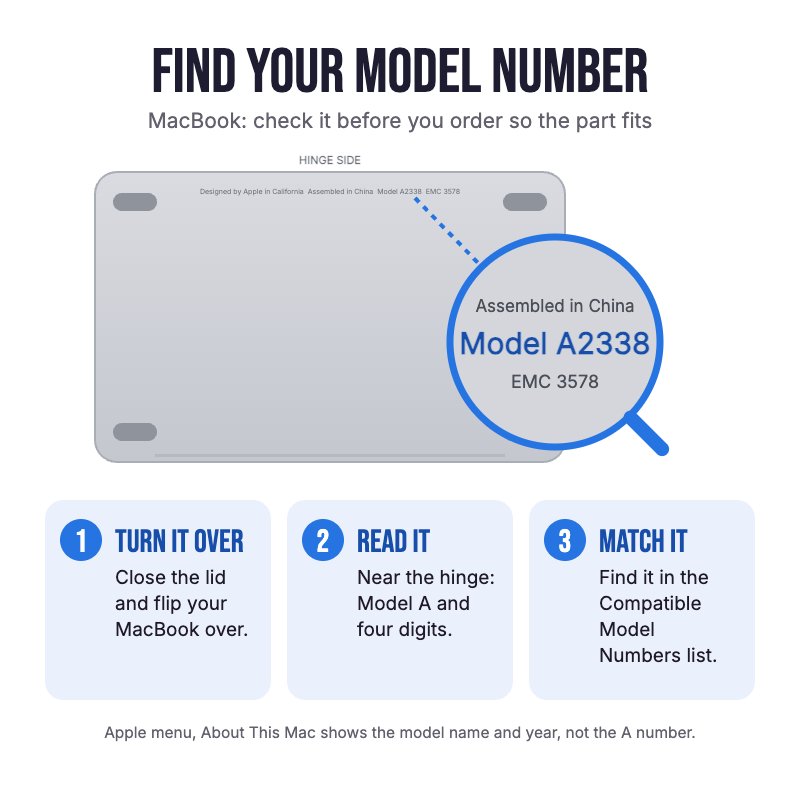
Does NOT fit the 2016 to 2019 13" MacBook Pro (A1706, A1708, A1989, A2159) or the M1 and M2 A2338. Check the A-number on the bottom case.
Please Note
The trackpad cable and screws are not included. Move them across from your old trackpad.
Specifications
- Part Type: Force Touch trackpad
- Colour: Silver or Space Grey
- Cable: Not included
- Condition: Brand new or A-grade used genuine Apple part
- Warranty: 12 Months
How do I find my Model number?
 MacBook Pro 13" 2020 (Four Ports)
 MacBook Pro 13" 2020 (Two Ports)
Compatible Model Numbers
MacBook Pro 13" 2020 (Four Ports)Model Number (A Number)
- A2251
EMC Number
- EMC 3348
 MacBook Pro 13" 2020 (Four Ports) How do I find my Model number?
Model Identifier
- MacBookPro16,2
Device Number (M Number)
- MWP42
- MWP52
- MWP62
- MWP72
- MWP82
More info Less info
MacBook Pro 13" 2020 (Two Ports)Model Number (A Number)
- A2289
EMC Number
- EMC 3456
MacBook Pro 13" 2020 (Two Ports) How do I find my Model number?
Model Identifier
- MacBookPro16,3
Device Number (M Number)
- MXK32
- MXK52
- MXK62
- MXK72
More info Less info
Installation Help

Check out the video above or the step by step guide below for assistance with this repair
Follow the step by step guide for your model below.
iFixit MacBook Pro 13" Four Thunderbolt Ports 2020 Trackpad Replacement Guide
iFixit MacBook Pro 13" Two Thunderbolt Ports 2020 Trackpad Replacement Guide

Here are some tools you may need to help you complete the repair.
- P5 Metal Pentalobe 1.2mm Screwdriver Tool
- T3 Metal Torx Screwdriver Tool
- T5 Torx Screwdriver | MacBook Logic Board and Battery Repairs
- Or get the P5, T3 and T5 together in our 10 Piece MacBook Repair Toolkit
- Large Blue Suction Cup Opening Tool
- iGadget Plastic Triangle Opening Picks (set of 5)
- Nylon Antistatic Spudger Pry Tool
- ESD Anti-Static Stainless Steel Curved Tweezers | ESD 15
- uFix iOpener Microwaveable Heated Bag Opening Tool
- iGadget Universal Magnetic Work Project Mat with Marker (30cm x 25cm)

Here are some helpful tips to assist you in completing a safe repair on your device. If you are unsure of something or have any questions, please feel free to contact us either by phone (0508 IGADGET) or by email
- Turn off Auto Boot first so the MacBook doesn't switch on when you open it: run
sudo nvram AutoBoot=%00in Terminal, andsudo nvram AutoBoot=%03to turn it back on after the repair - Always power down your device and unplug the battery before you remove any other parts. Keep metal tools away from the battery, and never bend, crush or puncture it
- The bottom case screws are P5, the four port A2251 uses T3 screws on the cable bracket, and the trackpad screws are T5 on both models. Track your screws on a magnetic work mat or tape them to a drawing of your laptop
- Lift the front edge of the bottom case with a suction cup and run an opening pick round the edge to release the clips
- The trackpad cable is stuck down. Warm it with an iOpener and peel it up slowly, then lift the cable connectors with a spudger or tweezers, never the sockets
- Open the display slightly as the trackpad comes out, so its edge clears the top case
- A Force Touch trackpad has no moving click. If it feels dead after fitting, check its cable is fully seated, then restart the MacBook
What’s In The Box
- 1x MacBook Pro 13" A2251 / A2289 Trackpad (2020)


