





MacBook Air 13" A2337 M1 / A2179 Trackpad Flex Cable Replacement (2020) | 821-02663
MacBook Air 13" A2337 M1 / A2179 Trackpad Flex Cable Replacement (2020) | 821-02663
 In Stock
Regular price
NZ$14.99
Regular price
Sale price
NZ$14.99
Unit price
per
inc GST


MacBook Air 13" A2337 M1 / A2179 Trackpad Flex Cable Replacement (2020) | 821-02663
MacBook Air 13" A2337 M1 / A2179 Trackpad Flex Cable Replacement (2020) | 821-02663
In Stock
Regular price
NZ$14.99
Regular price
Sale price
NZ$14.99
Unit price
per
inc GST
DIY DIFFICULTY
EasyAbout 15 to 45 minutes
Battery unplugged and cable cover off. The cable peels off the battery and unclips at both ends.
- Replacement trackpad flex cable, printed 821-02663-A
- Fixes a trackpad that's not clicking or not working, or a keyboard and trackpad that stopped together
- Compatible with MacBook Air 13" M1 A2337 (Late 2020) and A2179 (Early 2020)
Frequently Bought Together


Frequently Bought Together


Product Details
Has the trackpad on your MacBook Air M1 stopped clicking or responding, or have the keyboard and trackpad stopped working together? Apple calls this the input device flex cable: it joins the trackpad, and the keyboard through it, to the logic board.
One cable fits both 2020 MacBook Airs: the M1 A2337 and the Intel A2179. For the 2018 to 2019 A1932 or the M2 A2681, get the A1932 cable or the A2681 cable. Need the trackpad too? We stock the A2337 trackpad and the A2179 trackpad.
Part Includes:
- 1x Trackpad flex cable
- 12 Month Warranty
Please Note
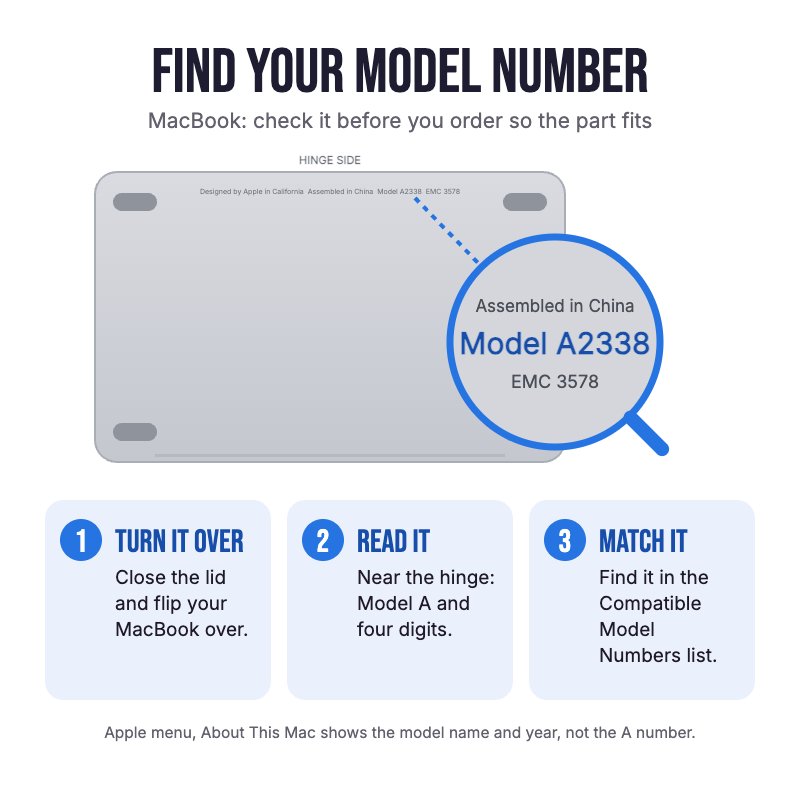
Does NOT fit the 2018 to 2019 A1932 or the M2 A2681. Check the A-number on the bottom case.
Please Note
This is the cable only. The trackpad and its screws are not included.
Please Note
The battery is only unplugged and the cable cover comes off. The trackpad and logic board stay in.
Specifications
- Part Type: Trackpad flex cable (input device flex)
- Printed Part Number: 821-02663-A
- Service Part Number: 923-04008
- Connects: Trackpad and keyboard to logic board
- Condition: Brand new or A-grade used genuine Apple part
- Warranty: 12 Months
How do I find my Model number?
 MacBook Air 13" M1 Late 2020
 MacBook Air 13" Early 2020
Compatible Model Numbers
MacBook Air 13" M1 Late 2020Model Number (A Number)
- A2337
EMC Number
- EMC 3598
 MacBook Air 13" M1 Late 2020 How do I find my Model number?
Model Identifier
- MacBookAir10,1
Device Number (M Number)
- MGN63
- MGN73
- MGN93
- MGNA3
- MGND3
- MGNE3
More info Less info
MacBook Air 13" Early 2020Model Number (A Number)
- A2179
EMC Number
- EMC 3302
MacBook Air 13" Early 2020 How do I find my Model number?
Model Identifier
- MacBookAir9,1
Device Number (M Number)
- MVH22
- MVH42
- MVH52
- MWTJ2
- MWTK2
- MWTL2
More info Less info
Installation Help

Check out the video above or the step by step guide below for assistance with this repair
Follow the step by step guide for your model below. The cable is out by step 9, so you can stop before the trackpad screws. The logic board stays in.
iFixit MacBook Air 13" M1 Late 2020 Trackpad Replacement Guide
iFixit MacBook Air 13" Early 2020 Trackpad Replacement Guide

Here are some tools you may need to help you complete the repair.
- P5 Metal Pentalobe 1.2mm Screwdriver Tool
- T3 Metal Torx Screwdriver Tool
- T5 Torx Screwdriver | MacBook Logic Board and Battery Repairs
- T4 Metal Torx Screwdriver Tool
- Or get the P5, T3 and T5 together in our 10 Piece MacBook Repair Toolkit
- Nylon Antistatic Spudger Pry Tool
- ESD Anti-Static Stainless Steel Curved Tweezers | ESD 15
- uFix iOpener Microwaveable Heated Bag Opening Tool
- iGadget Universal Magnetic Work Project Mat with Marker (30cm x 25cm)

Here are some helpful tips to assist you in completing a safe repair on your device. If you are unsure of something or have any questions, please feel free to contact us either by phone (0508 IGADGET) or by email
- M1 A2337: Turn off Auto Boot first so the MacBook doesn't switch on when you open it: on macOS Sequoia or later run
sudo nvram BootPreference=%00in Terminal, andsudo nvram -d BootPreferenceto undo it. On older macOS, keep the lid closed while it is plugged in. Intel A2179: runsudo nvram AutoBoot=%00instead, and%03to turn it back on - Always power down your device prior to working on it
- Always unplug the battery before you remove any other parts, and keep metal tools away from the battery. Never bend, crush or puncture it
- The bottom case screws are P5. Track your screws on a magnetic work mat or tape them to a drawing of your laptop
- The cable cover uses T3 screws. If the T3 feels loose, try a T4. The trackpad screws are T5
- The cable is stuck to the battery. Warm it with an iOpener and peel it up slowly. Never lever against the battery cells
- Flip up the small locking flap on each ZIF connector with a spudger or tweezers before sliding the cable out, and close it again once the new cable is in
What’s In The Box
- 1x MacBook Air 13" A2337 / A2179 Trackpad Flex Cable (2020)


